
My Own Agent Skills ① — Generating YouTube Subtitles
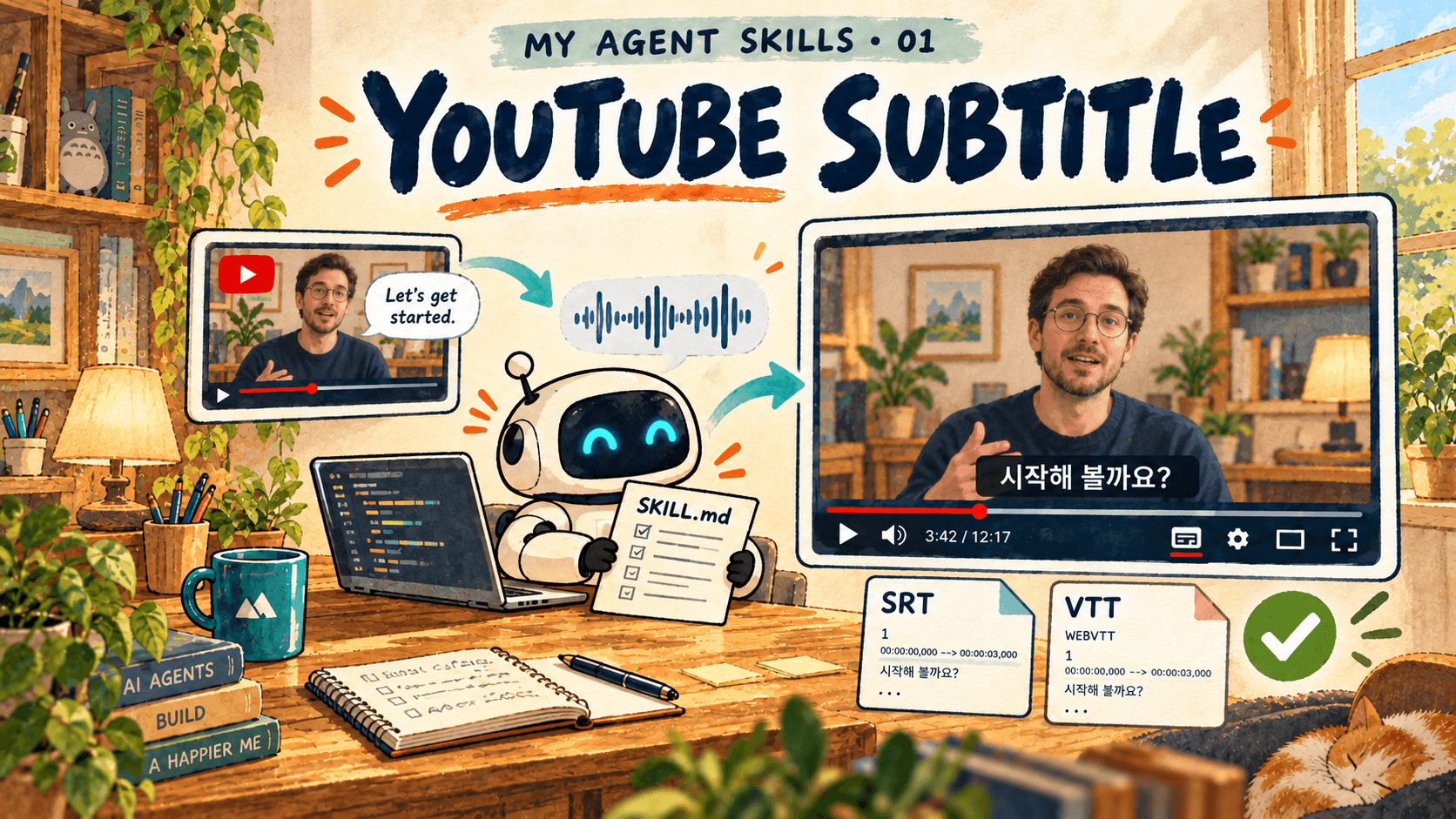
In this post, I want to introduce a Skill I built myself and have found really useful: a Skill that generates subtitles from videos.
1. Why Videos Need Subtitles
I watch a lot of content on YouTube. Especially videos about software engineering and AI. Most of these videos are in English, so without subtitles they're often hard to follow. And even when Korean subtitles are available, they often sound heavily machine-translated.
YouTube does offer live translation, but the quality still isn't where I want it. And maybe because it's translating on the fly, the subtitles often fall out of sync with when the speaker is actually talking.
The content is hard enough to understand as it is. I often wished I could watch it without the language barrier, entirely in the language I know best: 'Korean'.
2. First Attempt - A Failure
About two years ago, I started building my own software to create Korean subtitles from YouTube videos.
I've already written about it in detail on this blog, so feel free to give it a read if you're interested.
Creating an Automatic Video Subtitle TranslatorHere's roughly how it worked:
- Provide a YouTube video link
- The program downloads the video (using yt-dlp)
- Convert speech to text with the GCP Speech to Text API
- Translate the text into Korean via the Gemini API
- Generate an SRT (subtitle file) from the translation
- (Optional) Burn the subtitles into the video (using FFmpeg)
Honestly, the subtitles this process produced back then weren't great. Part of that was probably on me for not building the program well, but I suspect the LLM at the time (Gemini) also had its limits when it came to translating English into smooth Korean.
On top of that, the GCP STT (Speech-to-Text) API wasn't as accurate or as fast as I wanted. In particular, when the speaker's pronunciation was unclear, proper nouns would often get recognized as completely different words. This didn't really get in the way of understanding the video as a whole, but it often shifted the context in subtle ways.
In the end, I had to find another way to get high-quality subtitles.
3. Second Attempt - Together with Claude Code
The program I built was decent enough. So I just kept using it as it was, until one day last July, a thought suddenly hit me:
What if I just toss a YouTube video at Claude Code? Wouldn't it whip up exactly the subtitles I want?
So I actually tried it. I handed it a YouTube video and asked for Korean subtitles. Of course, I didn't get the result I wanted right away. Claude Code can't understand video, and it has no way to transcribe speech from an audio file into text.
So after some back-and-forth with Claude, I was able to define the following process:
- A human provides a YouTube video link
- The Skill automatically handles everything else
- Download the video
- Transcribe the speaker's speech from the video
- Translate the transcript into Korean
- Finally, generate Korean subtitle files (SRT/VTT)
Out of the whole process, the only thing Claude can't do on its own is transcription. Claude told me I could pick one of two options:
- Install a transcription model locally
- Use a cloud-based transcription model
After some thought, I went with installing a transcription model locally. I wasn't sure it was worth paying for a transcription service, and I'd also read reviews saying even small local models perform well enough.
The model I chose is faster-whisper, based on Whisper, which OpenAI released.
I'm on a MacBook, so I needed a local model that could run on CPU alone, without a GPU. That's why I went with this one: it's lighter and faster.
With the one piece Claude couldn't handle on its own filled in, the rest went smoothly.
Claude Code got the whole program written pretty smoothly, and I fed it the following YouTube video as a test.
With the Opus model available back in July, it took about 30 minutes to create Korean subtitles for a 13-minute video. That includes the 10 minutes spent downloading the transcription model, plus the time Claude Code spent fixing code issues on its own. I ran the same video link about three times, pushing the subtitle quality higher with each run.
Once I felt the code was reasonably stable, I had it create subtitles for a different video.
Video length: 19 minutes
Time per stage
| Stage | Time | Details |
|---|---|---|
| Environment setup | ~1 min | Check the local transcription model installation |
| Video download | ~10 sec | Fetch the title and download |
| English transcription | ~3 min 30 sec | Uses the Whisper small.en model |
| Korean translation | ~6 min | Translated directly by the Claude model (English → Korean) |
| Subtitle generation + sync check | ~1 min | Generate SRT/VTT, check subtitles against frames |
The subtitles from this process were surprisingly good. They didn't feel stiff or translated; they read naturally. And the 'sync', meaning the timing between when the speaker talks and when the translated subtitle shows up on screen, was perfect too.
4. Turning It into a Skill
Once the program was working well, I started watching at least one video a day with translated subtitles.
But having to launch Claude Code and write a prompt every time was a hassle. In every session, I had to tell it what needed to be done, where each script lived, and so on.
That's exactly the kind of situation Skills are made for.
A Skill is a document that spells out, ahead of time, the steps Claude Code should follow for a specific task. You put a SKILL.md file in a folder and write down "when to use this Skill" and "what to do, in what order." If needed, you can also put scripts or reference docs in the same folder.
youtube-subtitle/
  ├── SKILL.md      # name, description, workflow
  └── scripts/      # scripts for downloading, transcription, etc.
So I created a new Skill called youtube-subtitle. That got rid of the hassle of spelling out what to do every time. I just launch Claude Code and run the /youtube-subtitle command with a YouTube link, and the subtitles get made by following the steps in SKILL.md.
There's one more benefit to managing it as a Skill. When I prompted it by hand, the 'sync' check would sometimes get skipped, leaving me with just the subtitle files. When that happens, the subtitles drift a little behind or show up too early while you're watching. But once I explicitly added a sync check as the final step in SKILL.md, that problem went away. In other words, the quality of the final output became consistent.
5. How the Subtitles Get Made
Now let me briefly walk through how this Skill works.
- Provide a YouTube video link with the
/youtube-subtitlecommand - Environment setup (script, first run only): install
faster-whisperandyt-dlp - Video download (script): download the video with yt-dlp and save it in a folder named after the video title
- Spoken language check (Claude): transcribe just 2 minutes from the middle of the video first, decide whether it's English, and pick the transcription model to use
- English transcription (script): turn the audio into English text with faster-whisper, recording the start and end time of each sentence
- Korean translation (Claude): read the entire transcript and translate it in context. Broken-up sentences get joined during translation, and misheard terms get fixed right at this step
- Translation review (Jev, optional): an external review tool flags suspicious spots, and Claude checks and fixes them
- Subtitle file generation (script): attach the original timing info to the translation and generate SRT/VTT files
- Sync check (Claude): overlay subtitles on a few scenes of the video, capture them, and check firsthand that the subtitles match what's being said
Only steps 4, 6, 7, and 9 involve the LLM. Everything else runs as Python scripts.
Reviewing the translation with Jev in step 7 is optional. Jev is a model released by TypeSafe. Instead of generating text, it only returns verdicts in a fixed format. You send it a question and a set of options, and it picks one and tells you how likely that judgment is to be right (its confidence). Since it doesn't generate text, there's no output token cost, and input tokens run about $42 per billion, so even hundreds of calls won't cost much. You need a TypeSafe API key to use it. Without one, this step gets skipped and the Skill goes straight to generating the subtitle files.
In this Skill, Jev compares the English transcript and the Korean translation as text and judges whether the translation faithfully carries over the original.
How I Use Jev
I split the subtitles into batches of 3–12 subtitles and send each batch with two context subtitles before it and two after it. For each batch, Jev answers the five questions below with one of clear (no problem), issue (problem found), or uncertain (can't tell), along with a confidence score.
| Check | Type | What it asks |
|---|---|---|
| Omission | choice | Did the translation drop important meaning from the original? (“It's fast, but it costs three times more.” → "빠릅니다." ("It's fast.")) |
| Addition | choice | Did it add claims that aren't in the original? (“We moved to Postgres.” → "성능 문제 때문에 Postgres로 옮겼습니다." ("We moved to Postgres because of performance issues.")) |
| Meaning change | choice | Did negation, a condition, causality, a quantity, or the actor change? (“You don’t need to restart the server.” → "서버를 재시작해야 합니다." ("You need to restart the server.")) |
| Flow | choice | Do consecutive subtitles read naturally together? (e.g., one sentence split across two subtitles, where the word order gets tangled and stops making sense when you read them together) |
| Terminology | choice | Did it mistranslate a technical term, code identifier, or proper noun? ( printNums → "숫자 출력 함수" ("number-printing function"), or rendering the glossary's "상태 유지형" ("state-retaining") as "상태가 있는" ("having state")) |
The Skill fires off hundreds of API calls quickly and checks the translation quality through the choice API (a format where Jev picks one of a fixed set of options). If a batch gets issue or uncertain, or a clear with confidence below 0.7, it becomes a "candidate for a second look." Jev doesn't fix the translation. Claude decides whether to fix it.
6. Skills repository
These days, you can build software at this level pretty easily. That makes it easy for people to build and maintain the features they need themselves. Still, I figured that if I shared this Skill, people who need it could give it a try.
Inspired by Matt Pocock's Skills repository, I'm making my own personal Skills repository public. Right now it only has the youtube-subtitle skill, but I plan to add the other skills I've built and use personally, one by one.
Jinyoung's Skills: Skills repository
The repository link above has detailed installation instructions, so take a look if you want to try it yourself.
Testing the Skill
For reference, this Skill was tested in the following environments:
Device 1: iMac
- iMac (Retina 5K, 27-inch, 2019) / 6-core Intel Core i5 3.0GHz / 40GB memory / macOS 15.7
- It took 18 minutes to create subtitles for a 12-minute video. (Model: Sonnet 5.5, Effort: High)
Device 2: MacBook Pro
- MacBook Pro 14 (M3 Pro)
- For videos around 20 minutes long, some took as little as 12 minutes, while others took as long as 34 minutes. The time seems to depend less on the length of the video and more on how long the transcript is.
- The longest video was 3 hours 5 minutes, and it took 99 minutes. (Model: Opus 5, Effort: High)
Which Model and Effort Should You Pick?
After processing more than 120 videos with the Skill, I found I didn't need a particularly powerful model or a high effort setting. I started out with Opus 5 on xhigh effort, then gradually lowered the effort, and the subtitle quality held up. So these days I keep it on Sonnet 5.5 with High. Even with that setup, the subtitles don't feel awkward, and the whole run takes less time.
A Word of Caution
Making subtitles this way for your own viewing is one thing, but uploading the subtitles and video somewhere else may violate copyright. Everyone should take extra care not to infringe on other people's copyrights.
7. What About Languages Other Than Korean?
By default, the youtube-subtitle skill takes an English video as input and outputs a Korean subtitle file. But if you specify a different output language when invoking the Skill, it creates a subtitle file in that language.

Since the LLM (Claude) does the translation itself, specifying the output language in the prompt is all it takes.

Room for Improvement
- Specifying an output language in the prompt does produce subtitles in that language, but the current Skill is still tailored to Korean. So I haven't tested how smoothly it works in languages other than Korean, or whether the subtitles get split into chunks a person can take in at a glance.
- There are bound to be differences between languages. Down the road, I'm hoping people who use this Skill in other languages will add instructions tailored to their own language and send a PR. 😺